
By Brad Greiner, Founder of Gigasoft Computers Posted August 14th 2026
Why Is My Computer Running So Slow? 10 Common Causes and How to Fix Them
One of the most common complaints I hear when someone brings a computer to Gigasoft Computers is, “My computer has gotten really slow.” Sometimes it takes forever to start Windows, programs seem to take ages to open, web browsers constantly freeze, or even simple tasks that used to happen instantly suddenly become frustrating. The good news is that a slow computer doesn’t automatically mean you need to replace it. In many cases, there is a specific reason behind the slowdown, and once that problem is identified, the computer can often be brought back to life.
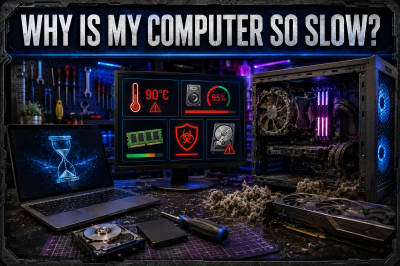
I’ve worked on plenty of computers where the owner was convinced it was time to buy a new one, only to discover that the actual problem was something relatively simple. Other times, however, poor performance can be an early warning sign of failing hardware. The important part is figuring out why your computer is slow instead of immediately throwing upgrades at it. Here are ten of the most common causes I look for when diagnosing a slow PC.
1. Too Many Programs Are Starting With Windows
One of the first things I check on a slow computer is what’s happening when Windows starts. Over time, applications have a habit of adding themselves to the startup process. Cloud storage programs, game launchers, messaging applications, printer utilities, update managers, RGB software and countless other programs can all begin loading the moment you sign into Windows.
Individually, many of these applications don’t use much of the computer’s resources, but when you have ten, fifteen or even twenty of them trying to start simultaneously, the difference can become very noticeable. This can make Windows take considerably longer to become usable after startup and leave unnecessary programs consuming memory and processing power in the background throughout the day. Disabling applications you don’t need at startup can make a surprisingly large difference without uninstalling the programs themselves.
2. Your Storage Drive Is Getting Full
Another common problem is a nearly full storage drive. Windows needs free space for temporary files, updates, virtual memory and many of its normal background operations. If your main drive is packed with photos, videos, games, downloads and programs, the entire system can begin to feel sluggish.
I generally recommend keeping a reasonable amount of free space available rather than waiting until Windows starts warning you that the drive is completely full. Cleaning temporary files, uninstalling programs you no longer use and moving large files to another drive can help. However, I also recommend being careful with automated “PC cleaner” programs. Some promise dramatic performance improvements but can cause more problems than they solve. If you’re unsure what can safely be removed, it’s better to check before deleting important system files or personal data.
3. You're Still Using a Mechanical Hard Drive
This is one of the biggest performance improvements I regularly see.
Many older computers still use a traditional mechanical hard disk drive, or HDD. These drives contain moving components and are dramatically slower than modern solid-state drives. A computer can have a perfectly capable processor and enough RAM but still feel painfully slow simply because Windows is waiting on an old hard drive.
Upgrading an older computer from a mechanical hard drive to an SSD can completely transform how the machine feels. Windows can start much faster, applications open quicker, files load faster and the entire computer becomes more responsive. I’ve seen computers that people considered unusable become perfectly practical again after replacing the hard drive with an SSD.
That doesn’t mean every old computer is worth upgrading, but an SSD is one of the first upgrades I consider when determining whether an aging PC can be given a second life.
4. Your Hard Drive or SSD Could Be Failing
Slow performance isn’t always caused by normal aging. Sometimes it is a warning that the storage device itself is beginning to fail.
A failing drive may cause Windows to freeze unexpectedly, files to take unusually long to open, applications to stop responding, strange errors to appear or the computer to become progressively slower. Mechanical hard drives can develop bad sectors or mechanical problems, while SSDs can also fail due to controller problems, flash wear or other hardware issues.
This is one situation where I don’t recommend ignoring the symptoms. If a storage drive is failing, your data could be at risk. Important photos, documents, accounting information and other irreplaceable files should always be backed up, regardless of whether your computer currently appears healthy. If a computer suddenly becomes dramatically slower for no obvious reason, checking the health of the storage drive should be part of the diagnosis.
5. Your Computer Doesn't Have Enough RAM
RAM is your computer’s short-term working memory. Every program you open uses some of it, and modern applications can consume considerably more memory than they did years ago. Web browsers are particularly good examples. Open enough browser tabs alongside Outlook, Word, Teams and a few other programs and a computer with limited RAM can quickly begin struggling.
When the available RAM runs low, Windows has to rely more heavily on the storage drive as virtual memory. Even with a fast SSD, storage is significantly slower than RAM, so performance can drop noticeably. Programs may take longer to switch between, browser tabs can reload unexpectedly and the entire computer may feel less responsive.
Adding more RAM isn’t automatically the solution to every slow computer, though. I prefer checking how the computer is actually using its memory before recommending an upgrade. If the system already has plenty of unused RAM, adding more isn’t going to magically make it faster. Upgrades should address an actual bottleneck rather than simply adding hardware because more sounds better.
6. Dust and Overheating Can Slow Everything Down
Computers generate heat, and they depend on proper airflow to keep their components within safe operating temperatures. Unfortunately, computers are also extremely good at collecting dust.
Over time, dust can build up inside fans, heatsinks, vents and filters. In severe cases, I’ve opened computers where airflow was almost completely restricted. When processors and graphics cards become too hot, modern hardware can reduce its own performance to protect itself. This is known as thermal throttling.
That means a computer might technically still work while running significantly slower than it should. Excessive heat can also cause crashes, shutdowns and potentially shorten the lifespan of components. Regular cleaning and proper airflow are especially important for gaming PCs and systems that operate for long periods every day.
7. Malware or Unwanted Software Is Running in the Background
Malware remains another possible cause of poor performance, although not every slow computer has a virus. Malicious programs, browser hijackers, adware and unwanted applications can consume system resources, interfere with your browser and run processes in the background without you realizing it.
I’ve also seen computers loaded with multiple antivirus programs, questionable optimization utilities and unnecessary browser extensions that actually contribute to the slowdown they’re supposedly trying to prevent. More security software doesn’t necessarily mean more security, especially when several programs are competing with each other.
If a computer begins behaving differently, displaying unusual advertisements, redirecting searches, opening programs you don’t recognize or suddenly using excessive resources, a proper malware scan and inspection is worthwhile.
8. Windows or Your Drivers Need Attention
Windows updates receive plenty of criticism, but keeping an operating system reasonably current is important for security, compatibility and stability. Problems can occur when updates repeatedly fail, system files become corrupted or drivers are outdated or improperly installed.
Drivers are particularly important because they allow Windows to communicate correctly with hardware such as your graphics card, network adapter, motherboard components and peripherals. A driver problem doesn’t always produce an obvious error message. Sometimes the symptom is simply poor performance, instability or hardware that doesn’t behave correctly.
This is why troubleshooting a slow PC often involves more than running one cleanup program. I look at the overall condition of Windows, installed drivers, updates and system health to determine whether the software itself is contributing to the problem.
9. Background Programs Are Using Your Resources
Sometimes the computer isn’t actually slow—it is simply busy.
Windows Update may be downloading or installing an update. Cloud storage could be synchronizing thousands of files. An antivirus program might be performing a full system scan. A game launcher could be downloading a massive update in the background. Windows might be indexing files, or another application could be consuming most of the processor, memory, disk or internet connection.
Task Manager can provide valuable clues because it shows which applications are currently consuming your computer’s resources. If one program is consistently using an unusually high amount of CPU, memory or disk activity, that gives you somewhere to begin investigating.
The key is determining whether that activity is normal. Ending random Windows processes simply because they’re using resources isn’t a good troubleshooting method and can cause additional problems.
10. The Computer May Simply Be Too Old for What You're Asking It to Do
There eventually comes a point where upgrades stop making financial sense.
An older computer might be perfectly adequate for email, web browsing and basic documents but struggle with modern games, professional software, video editing or heavy multitasking. Software continues to become more demanding, and hardware that was fast when it was purchased won’t remain high-end forever.
When someone brings me an older computer, I don’t believe in recommending upgrades simply for the sake of selling parts. The better question is whether spending money on that computer will provide enough additional useful life to make the investment worthwhile. Sometimes adding RAM or installing an SSD is all that’s needed. Other times, putting several hundred dollars into an aging machine would be better spent toward a newer computer.
Should You Repair, Upgrade or Replace Your Slow Computer?
This is ultimately the question that matters most. If the computer is generally reliable and its main bottleneck is something like a mechanical hard drive or insufficient RAM, an upgrade may provide several more years of useful service. If the computer has multiple failing components, an outdated processor and other limitations, replacement may make more sense.
That’s why I prefer diagnosing the problem before recommending a solution. A slow computer is a symptom, not a diagnosis. There are dozens of reasons a PC can lose performance, and replacing parts without identifying the actual cause can waste money while leaving the original problem unresolved.
At Gigasoft Computers, I work on computers ranging from everyday home PCs and laptops to custom gaming systems and business computers. Whether the solution is cleaning up Windows, removing unwanted software, replacing a failing drive, upgrading hardware or recommending that it’s finally time for a new computer, my goal is to find the solution that makes the most sense for the customer.
Final Thoughts!
If your computer isn’t as fast as it used to be, don’t immediately assume that it’s finished. Computers can slow down for many reasons, and quite a few of them are repairable. Startup programs, limited storage, insufficient RAM, overheating, malware, failing drives and aging hardware can all create similar symptoms even though they require completely different solutions.
The most important step is determining what’s actually causing the slowdown. A properly diagnosed computer can often be repaired or upgraded for considerably less than the cost of replacing it. And if replacement really is the better choice, knowing that before investing money into unnecessary repairs can save you from spending twice.
About the Author:
Brad Greiner is the owner of Gigasoft Computers in Medicine Hat, Alberta, where he specializes in computer repair, custom gaming PCs, website design, and technology solutions for homes and businesses. A lifelong PC gamer and independent game developer, Brad has spent over 4,000 hours playing The Elder Scrolls V: Skyrim, created the Canadian Civil War Skyrim mod, and is currently developing his own open-world RPG, Rise to Glory, in Unreal Engine 5. Through the Gigasoft Computers blog, he shares honest reviews, practical tech advice, and real-world experience from the worlds of technology and game development.