
By Brad Greiner, Founder of Gigasoft Computers Posted August 28th 2026
How Often Should You Clean Your Computer? A Complete PC Maintenance Guide
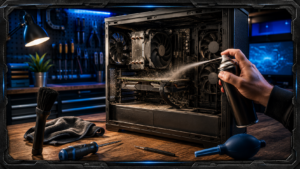 One of the easiest computer maintenance jobs to ignore is also one of the most important: keeping the computer physically clean. Most people don’t think about dust inside their PC because they can’t see it during normal use. The computer sits under a desk, on a desk or in an office and continues working, so everything seems fine. Meanwhile, every cooling fan is moving air through the system, and along with that air comes dust, pet hair and other debris. Given enough time, that buildup can restrict airflow and make the cooling system work harder than it should.
I’ve opened computers where there was barely any dust inside, and I’ve worked on others where the fans, filters and heatsinks were completely packed. There isn’t one cleaning schedule that works for every computer because the environment matters enormously. A PC sitting on a clean desk in a relatively dust-free office has completely different maintenance requirements from a gaming computer sitting on carpet in a home with several pets. Instead of waiting until the computer starts overheating, I recommend treating cleaning as preventative maintenance.
Why Does Dust Matter So Much?
Modern computers produce a surprising amount of heat. The processor and graphics card can both generate significant heat under load, especially in gaming systems and higher-performance workstations. That heat is transferred into heatsinks or radiators, and fans move air across them to carry the heat away.
The problem begins when dust starts covering those surfaces. A light coating isn’t normally going to destroy a computer, but heavy accumulation can restrict airflow through filters, collect between heatsink fins and cover fan blades. As cooling efficiency decreases, temperatures can increase.
Modern processors and graphics cards have safeguards designed to protect themselves from excessive heat. One of those protections is reducing performance when temperatures become too high, commonly known as thermal throttling. In more serious situations, a computer may become unstable or shut itself down to protect the hardware.
Cleaning isn’t about making the inside of the computer look nice. It’s about allowing the cooling system to operate the way it was designed to.
So, How Often Should You Clean Your Computer?
For an average home or office computer, I think checking it approximately every six months is a reasonable starting point. That doesn’t necessarily mean completely disassembling and cleaning the computer every six months. Sometimes checking the filters and looking through the vents is enough to determine whether anything needs attention.
For computers in dustier environments, checking every three to four months may make more sense. Gaming computers can also benefit from more frequent inspections because they often contain several intake and exhaust fans moving considerably more air through the case.
A computer in an unusually clean environment may be able to go longer between cleanings, but I still wouldn’t recommend simply forgetting about it for years.
The key word is check. If you inspect your computer after six months and there’s barely any dust, you’ve learned something about your environment and can extend the interval. If the filters are already packed after three months, you’ve learned that the system needs attention more frequently.
Your Environment Makes a Huge Difference
Where the computer is located can matter just as much as how often it’s used.
A computer sitting directly on carpet tends to encounter more dust and fibres near its intake vents than one elevated on a desk or stand. Pet owners can also see considerably more buildup because pet hair and dander are easily pulled toward intake fans.
Smoking or vaping around computers can create another problem. Airborne residue can settle on internal components and make dust stick to surfaces, producing buildup that’s much more difficult to remove than ordinary dry dust.
Work environments can be even more challenging. Computers used in workshops, industrial environments or other areas containing airborne particles may need significantly more maintenance than a typical office computer.
That’s why I don’t like giving people a rigid rule such as “clean every six months” and pretending it applies universally. The correct interval depends heavily on where the computer lives.
Start With the Dust Filters
Many modern computer cases have removable dust filters covering the primary intake areas. These are usually found at the front, bottom or top of the case depending on its design.
Filters are intentionally placed in the path of incoming air to catch dust before it reaches the components, which means seeing dust on them isn’t necessarily bad—it means they’re doing their job. The problem occurs when they become so clogged that air can no longer pass through efficiently.
Checking these filters periodically is one of the simplest maintenance tasks a computer owner can perform. Depending on the case, many filters slide out or attach magnetically and can be cleaned without opening the computer at all.
If a filter is washed, however, it should be completely dry before being returned to the computer. Water and powered electronics obviously aren’t a combination you want.
Don't Forget the Fans
Fans naturally accumulate dust on the edges and surfaces of their blades. Eventually, this can reduce efficiency and sometimes contribute to additional fan noise.
When cleaning a fan with compressed air, I prefer preventing the blades from spinning freely. Blasting compressed air into a fan and making it spin extremely fast isn’t necessary and can potentially damage the fan.
A soft brush can help loosen stubborn dust, while compressed air can move the loosened material away from the computer.
Case fans aren’t the only fans worth checking. Depending on the system, there may also be fans on the CPU cooler, graphics card, radiator and power supply.
I generally wouldn’t recommend opening a power supply itself for cleaning. Power supplies contain components that can retain dangerous electrical charges even after being disconnected. Cleaning accessible external vents is one thing; disassembling the power supply is another.
CPU Coolers and Radiators Can Hide a Lot of Dust
One area people sometimes miss is the heatsink itself.
A fan can look reasonably clean while the fins behind it are packed with dust. Because air needs to move through those fins to remove heat, a blockage there can significantly reduce cooling performance.
The same applies to liquid-cooling radiators. The radiator contains many closely spaced fins that can collect dust, particularly when it’s positioned behind intake fans.
If a computer has been running hotter than usual even though its fans appear to be working properly, checking the heatsink or radiator for buildup is worthwhile.
Your Graphics Card Needs Airflow Too
Gaming computers add another major source of heat: the graphics card.
Modern GPUs can consume hundreds of watts under load, and their cooling systems rely on several fans pushing air across heatsinks. Dust accumulation around those fans and heatsinks can affect cooling just like it does on the processor.
I wouldn’t recommend inexperienced users completely disassemble their graphics card just to clean it. In many cases, removing loose dust from accessible areas while leaving the cooler assembled is enough for routine maintenance.
If a graphics card requires deeper servicing, that’s a different job and should be approached carefully.
Be Careful With Compressed Air
Compressed air is useful, but how it’s used matters.
If you’re using canned compressed air, keep the can in the orientation recommended by the manufacturer. Tilting or turning some cans upside down can cause liquid propellant to spray from the nozzle.
Short controlled bursts are generally better than continuously blasting components.
I also recommend taking the computer somewhere appropriate before cleaning it. Blowing several years of dust out of a PC while it’s sitting on your office desk simply moves that dust into the room, where some of it may eventually find its way back into the computer.
What Should You Never Use Inside a Computer?
A household vacuum cleaner may seem like an obvious solution, but I don’t recommend putting a normal vacuum nozzle directly against computer components. Static electricity can potentially damage sensitive electronics.
Liquid household cleaners should also stay away from internal components. You don’t need window cleaner or general-purpose cleaner sprayed onto a motherboard to remove dust.
The goal is to remove debris safely, not make the electronics shine.
For the exterior of the computer, a microfiber cloth is usually sufficient for most surfaces. If something requires additional cleaning, I would apply an appropriate cleaner to the cloth rather than spraying liquid directly toward the computer.
What About Laptops?
Laptops have the same basic cooling problem but can be more difficult to clean.
Because everything is packed into a much smaller space, even a relatively small amount of dust can affect airflow through the cooling system. The intake and exhaust openings are also much smaller than those found on most desktop computers.
Unfortunately, properly cleaning some laptops requires removing the bottom cover, and the difficulty varies dramatically between models. Some are straightforward, while others use delicate clips, hidden screws or internal layouts that aren’t particularly friendly to inexperienced users.
If a laptop’s fan is running constantly, the bottom becomes unusually hot or performance decreases significantly under load, cooling should be one of the things investigated.
Does Thermal Paste Need to Be Replaced Every Year?
This is another area where I think unnecessary maintenance sometimes gets recommended.
Thermal paste sits between a processor and its cooler to help transfer heat. It can degrade over time, but that doesn’t mean every computer needs its thermal paste replaced annually.
If temperatures remain normal, there’s usually little reason to remove a properly installed cooler just because a certain amount of time has passed.
If the cooler is removed, however, I recommend cleaning off the old thermal compound and applying fresh paste before reinstalling it. And if an older computer suddenly develops unusually high processor temperatures despite having a clean cooling system and properly functioning fans, then checking the thermal interface may make sense.
Cleaning Won't Fix Every Overheating Problem
It’s also important not to assume dust is responsible for every temperature problem.
A failed fan, incorrectly mounted CPU cooler, failing liquid cooler, poor case airflow or another hardware issue can all cause overheating. Cleaning a spotless computer repeatedly won’t fix a pump that has stopped working.
This is why temperature problems should be diagnosed rather than guessed at. Dust is common and easy to check, but it isn’t the only possible cause.
Signs Your Computer May Need Cleaning
You don’t necessarily need to wait for a calendar reminder. Your computer may provide clues that it’s time for an inspection.
Fans becoming noticeably louder than they used to can indicate that they’re working harder to maintain temperatures. Higher operating temperatures, performance dropping during gaming or demanding workloads, visible dust around vents and unusually warm exhaust air can all justify taking a closer look.
Obviously, if you can see a thick layer of dust through the side panel, you probably don’t need diagnostic software to tell you it’s cleaning time.
Can Regular Cleaning Make a Computer Last Longer?
Cleaning can’t prevent every hardware failure, but proper maintenance can help keep the computer operating under the conditions its components were designed for.
Heat is something electronics have to deal with constantly. Keeping fans, filters and heatsinks clear allows the cooling system to control that heat more effectively.
There’s also a practical advantage: regularly inspecting a computer gives you opportunities to notice other problems. A fan that’s beginning to fail, a cable touching a fan blade or another obvious issue may be discovered during routine maintenance before it becomes a bigger problem.
Don't Overdo It
There’s another side to PC maintenance that doesn’t get discussed as often: you can maintain a computer too aggressively.
If the computer is clean and operating normally, there’s no reason to constantly remove components, disconnect cables and dismantle cooling systems. Every time hardware is removed, there’s some possibility of damaging a connector, stripping a screw, disturbing thermal paste or accidentally creating another problem.
Good preventative maintenance should reduce risk, not create it.
Inspect regularly, clean when necessary and leave properly functioning components alone when they don’t require servicing.
Final Thoughts
For most home and office computers, checking for dust roughly every six months is a good starting point, while gaming computers, systems near pets and computers operating in dusty environments may need to be inspected more frequently. Your own computer will ultimately tell you what schedule makes sense based on how quickly dust accumulates.
Keeping a computer clean isn’t complicated, but doing it properly matters. Dust filters, fans, heatsinks, radiators and vents all need unobstructed airflow, and a few minutes of preventative maintenance can sometimes prevent much more frustrating temperature and performance problems later.
At Gigasoft Computers, when I’m working on a computer, I’m not only interested in whether it turns on. Cooling, airflow, temperatures and the overall physical condition of the system can tell you a lot about how it’s operating. A clean computer isn’t automatically a healthy computer—but keeping it clean gives the hardware a much better environment in which to do its job.
About the Author:
Brad Greiner is the owner of Gigasoft Computers in Medicine Hat, Alberta, where he specializes in computer repair, custom gaming PCs, website design, and technology solutions for homes and businesses. A lifelong PC gamer and independent game developer, Brad has spent over 4,000 hours playing The Elder Scrolls V: Skyrim, created the Canadian Civil War Skyrim mod, and is currently developing his own open-world RPG, Rise to Glory, in Unreal Engine 5. Through the Gigasoft Computers blog, he shares honest reviews, practical tech advice, and real-world experience from the worlds of technology and game development.